
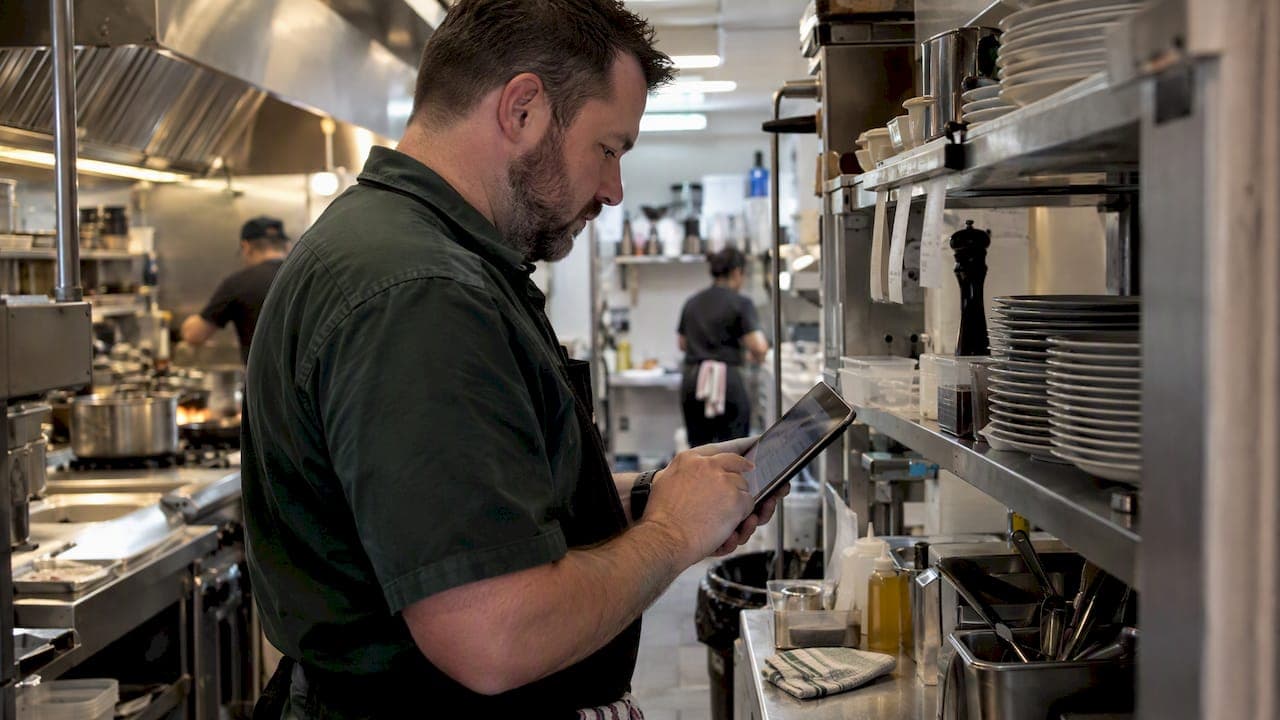
Good inventory user permissions come down to two decisions. What can each person do, and at which venue can they do it? Give every role the narrowest access that lets someone do their job, keep deleting, exporting and user changes with a trusted few, and review access whenever someone joins, moves or leaves. This guide gives you a role matrix you can copy, a step-by-step setup process, and the Australian privacy points that matter for restaurants, cafés, fish and chip shops, pubs and clubs.
TL;DR
- Set permissions by role first, then restrict by venue. Roles say what a person can do, venue scope says where.
- Let staff create counts, receipts and transfers. Keep cancelling, deleting, exporting, supplier price changes and user invitations for managers and owners.
- Separate the person who records a transaction from the person who approves it wherever your team size allows.
- Test each role with a real test account, not just your admin login.
- Review access at hiring, role changes, venue transfers and departures. Under the Privacy Act, prompt revocation is part of reasonable security.
Table of Contents
- Why permissions matter in a kitchen, not just in IT
- The layers of inventory access
- Two dimensions: role and venue
- A role matrix you can copy
- Delete, cancel and export: the rules worth being strict about
- How to set up and change permissions, step by step
- Test every role, not just your admin login
- The Australian privacy angle
- A simple access review routine
- Our view: permissions should make the right thing the easy thing
- Putting it together for different venue types
- Try it with your own team
- FAQ
- Sources
Why permissions matter in a kitchen, not just in IT
Most operators think of permissions as a login setting. In a venue they are a workflow control. They decide who can change a recipe, who can write off a case of prawns, who can alter a supplier price and who can see your food cost percentage.
When access is too wide, the damage is rarely dramatic. It is quiet. A casual edits a par level to "fix" an order, a duplicate product appears, a stocktake gets overwritten, a waste entry is deleted. None of it is malicious, but your numbers stop being trustworthy, and that is how margins get eaten without anyone noticing.
There is a common misconception that a small venue has little to protect. A café or pub still holds supplier pricing, sales and cost data, and possibly staff or customer details. The Office of the Australian Information Commissioner (OAIC) frames need-to-know access and prompt revocation as a sensible baseline for any business that holds personal information, whatever its size.
The layers of inventory access
Well-designed inventory systems expose permissions in layers, because the risk is different at each step.
| Layer | Example action | Risk level |
|---|---|---|
| View | See stock on hand, par levels | Low |
| Create | Start a stocktake, log a receipt, record waste | Low to medium |
| Edit master data | Change a product, unit, recipe or supplier price | Medium to high, because it changes every future count and cost |
| Process or approve | Finalise an order, approve a transfer | Medium to high |
| Cancel or delete | Remove a count, receipt or item | High, because it can erase the evidence |
| Export and administer | Download data, invite users, change settings | High |
Viewing stock is harmless. Editing the product list changes every number that follows. Deleting or exporting can remove evidence or move data outside your system. Build your roles around that ladder and most decisions become obvious.
Two dimensions: role and venue
Think of permissions as a grid. The role is one axis, the venue is the other.
A head chef might edit recipes and count stock at your Fitzroy kitchen only. An area manager might view all four venues and approve transfers between them. An owner sees everything. If your platform only offers one axis, you end up giving a venue manager broad access when all they needed was to approve orders and review variances.

If you run more than one site, the multi-location inventory guide explains how stock, transfers and venue scope fit together. For the wider reporting picture, see our multi-site inventory visibility guide.
A role matrix you can copy
The labels differ from platform to platform, but the responsibilities repeat across restaurants, cafés, fish and chip shops, pubs, clubs and commercial kitchens. Here is a practical starting point.
| Role | Should be able to | Should not be able to |
|---|---|---|
| Owner or admin | Manage users, settings, exports, all venues | Nothing is off limits, but keep this group tiny |
| Venue manager | Run inventory, ordering, receiving and reports for their own venues | Invite users or change settings across the group |
| Chef or kitchen lead | Maintain recipes, count stock, record production and waste | Edit supplier payment details, delete transactions |
| Storeperson | Record receipts, transfers and counts | Change prices, approve their own orders |
| Purchasing | Manage suppliers, purchase orders and receiving | Edit recipes, administer users |
| Finance or bookkeeper | View cost data and reports | Edit stock, counts or products |
| Casual staff | View stock or submit counts | Edit, delete, export or see cost reports |
A few notes on why the lines fall where they do.
Finance sees, but does not touch. A bookkeeper needs cost and reports. If they can also edit stock, you lose the independence that makes their review worth anything.
Chefs need recipes, not payment data. A head chef who builds menus and counts stock does not need to see what you pay a supplier on account. Custom roles are worth the effort exactly here: use them for a genuine difference, not as a way to patch one-off requests.
Casual staff get the smallest door. View-only or count-only access covers most of what a casual needs, and you can always widen it later.
Delete, cancel and export: the rules worth being strict about
If you only tighten three things, make it these.
- No delete rights by default. Staff create counts, receipts and transfers. Cancelling or deleting is for trusted managers or admins.
- Exports are a decision, not a default. A full export of products, costs and supplier pricing is a copy of how your business makes money. Limit it to owners and a named manager.
- User invitations stay with administrators. If anyone can add a user, your permission design is only as strong as your most helpful employee.
Where you can, separate the person who records from the person who approves. In a two-person café that may only mean the owner approves the weekly orders the manager prepares. In a group it can be a formal approval step. Either way, a second pair of eyes on write-offs and adjustments is the cheapest control you will ever add.
How to set up and change permissions, step by step
The exact screens depend on your software, but the process is the same everywhere.
- Write down the job. Note what the person actually does each week and at which venue. Do this before you open the settings.
- Choose the narrowest matching role. Start from your standard roles, not from admin.
- Add only required exceptions. If a chef needs to see one report, add that report, not the whole finance area.
- Set venue scope. Limit the user to the venues they work in.
- Save and invite. In most systems only an administrator can invite people. The user accepts the email invitation and sets a password.
- Test the account. Log in as that role, or create a test user, and try the real actions (see the checklist below).
- Recheck after change. Review when suppliers, venues, menus or staffing change.
Changes usually take effect as soon as you save, but invitation acceptance can add a short delay, so do not wait until Friday afternoon to onboard a new storeperson for Saturday's delivery.
Test every role, not just your admin login
Admin accounts can do everything, so testing with one tells you nothing. Create a test user for each role and try to:
- view another venue's stock
- edit a finalised stocktake
- delete an item or a receipt
- export data
- change a supplier price
- approve an order
- invite another user
If the account can do something it should not, tighten the role and test again. Ten minutes on this check beats discovering a gap after a month of strange variances.
The Australian privacy angle
Most inventory data is commercial, not personal. But platforms often sit next to staff names, contact details for suppliers and sometimes customer information, and the Privacy Act applies to businesses that are covered by it. Whether yours is covered depends on factors such as turnover and the information you handle, so check with the OAIC or your adviser if you are unsure.
For covered entities, APP 11 requires reasonable steps to protect personal information from misuse, interference, loss and unauthorised access, modification or disclosure. The OAIC's guidance on securing personal information points to controls that map neatly onto inventory permissions:
- give access on a need-to-know basis
- limit the number of administrative users
- use suitable authentication, such as multi-factor authentication, for higher-risk access
- revoke access promptly when it is no longer needed
The OAIC has also said, in its investigation report on AMEX, that managing insider risk takes more than policies or training: technical controls such as access and action logging, and the ability to restrict access, matter too. In practice, a written permissions matrix is the policy, and role and venue controls plus an activity log are the enforcement.
A simple access review routine
An access review does not need a consultant. Run it at four moments:
- Onboarding: assign the role and venue, then test.
- Role change: a kitchen hand becomes a sous chef. Move them to the new role rather than stacking extras on the old one.
- Venue transfer: remove the old venue, add the new one.
- Offboarding: remove access on their last day, ideally the same shift. Do not leave it for the end-of-month tidy.
Twice a year, list every user, their role and their venues. Anyone you cannot place gets removed. Keep a short note of when you did the review and what changed, in line with your own policies and legal requirements.
Our view: permissions should make the right thing the easy thing
We built PantryHub by chefs, for chefs, so we have seen what happens when a kitchen has one shared login and a spreadsheet. Nobody is being careless. It is just that the Tuesday-morning order, the Wednesday stocktake and the Thursday waste log all happen in a rush, and without roles nothing stops a well-meaning mistake.
Here is how we think about it.
- Start narrow, widen on request. It is easy to grant a manager one more permission. It is hard to claw back access people have grown used to.
- Keep the owner group tiny. One or two admins is plenty for a single venue. For a group, add area managers with venue scope rather than more admins.
- Do not make permissions a trust test. Tight roles are not an accusation. They protect good staff from being blamed for numbers they did not touch.
- Use the same roles across venues. Responsibilities repeat, so your roles should too. That is what keeps a group manageable as it grows.
PantryHub includes team management and access controls alongside real-time stock tracking, supplier ordering and multi-location management, so you can set this up in one place rather than juggling spreadsheets and shared passwords. Our own walk-through of kitchen user permissions for audit-ready compliance goes deeper on the audit side.
— Admin
Putting it together for different venue types
A single café. You, plus a manager and a few baristas and kitchen staff. Two roles may be enough: admin for you, and a count-and-receive role for everyone else. Keep exports and deleting with you. Our small venue inventory guide covers what to prioritise at this size.
A pub or club. More departments, more people, more cash-adjacent stock. Separate bar, kitchen and functions if you can, and add a purchasing role so the person ordering is not the person receiving. A finance view-only role helps at month-end.
A multi-venue restaurant group. Use venue scope as the main control. Venue managers see their own site, area managers see several, finance sees cost reports across all, and only head office administers users. Standardise recipes and pricing centrally so a chef at one site cannot quietly change a costing that every site relies on.
A fish and chip shop. Fewer staff, high-volume stock such as fish, oil and potatoes, and tight margins. Give the owner full control, a shift lead count and receive access, and keep price and product edits with the owner.
Try it with your own team
If you want to see role-based team access running against your real stock, start a free trial and set up your first venue. Prices are published in Australian dollars: Starter is $39 per month, Regular is $69 per month and Pro is $99 per month. Venue count and the features you need decide which plan fits. If you are weighing options, our guide to the best inventory systems for restaurants in Australia lists what to compare, and our hospitality inventory software page shows how it all fits together. Operating in Western Australia or South Australia? See our pages for Perth and Adelaide venues.
FAQ
How do I adjust user permissions for a staff member?
Write down their duties and venues, then pick the narrowest role that fits and add only the exceptions they truly need. Save the change and log in as that role to test real actions such as counting, receiving and exporting. Recheck whenever their job changes.
Who should be able to delete stock records?
Only a trusted manager or an administrator. Everyday staff should create counts, receipts and transfers but not remove them, because deleting can erase the trail you need to explain a variance. If someone enters something wrong, a manager can correct it with a record of who did it.
What user permissions does a restaurant need?
At minimum: an owner or admin role, a venue manager, a chef or kitchen lead, a storeperson or receiver, and a view-or-count-only role for casual staff. Add purchasing and finance roles as the team grows. The matrix earlier in this guide shows what each should and should not do.
Does the Privacy Act apply to my inventory software?
It can, if your business is covered by the Act and the system holds personal information such as staff or customer details. In that case the OAIC expects reasonable security steps, including need-to-know access and prompt removal of access. Check with the OAIC or your adviser to confirm whether your business is covered.
How often should I review who has access?
Review at every hire, role change, venue transfer and departure, and do a full user-by-user check about twice a year. Remove anyone you cannot match to a current job.
Sources
- OAIC: Part 1, Data breaches and the Australian Privacy Act
- OAIC: Guide to securing personal information
- OAIC: Report of investigation into AMEX